
I banned Roku from my internet to try to save my Roku Express
“Enshittification,” the process by which software and services degrade for the provider’s benefit, tends to be gradual, the digital equivalent of the proverbial frog that, heated slowly, doesn’t notice it’s being boiled. At some point in the recent past, Roku, after years of cooking us in lukewarm water, tossed me and the Roku Express I bought in 2022 into a cauldron of boiling water.
I wrapped up my review of the Roku Express [pt_BR], four years ago, by saying:
For the price, the Roku Express is a great deal for anyone with an old TV that still delivers good audio and video quality.
Since then, the experience has slowly gotten worse, with the addition of (more) ads and of Roku’s own sections and FAST channels, that is, free and ad-supported.
The boiling-water bath came in early 2026, when the one thing you expect from a product like the Roku Express, playing videos, broke down: out of nowhere, audio and video fell out of sync.
I turn on the TV and, before I even open an app, I notice that the sounds from pressing buttons on the remote are out of sync. I press one and only hear the TV’s little click a few milliseconds later, just enough to notice. The problem carries over to videos, regardless of the app or streaming service, and there the effect is even more noticeable: mouths on screen move out of step with the dialogue.
So I have a streaming box that can’t stream properly. How did we get here?
The “fix” I found searching online is to restart the Roku Express as many times as it takes until it works right. Usually once; sometimes up to three times.
It’s not the kind of problem that ruins anyone’s day. It’s just a dumb, inexplicable thing. Almost an insult, for existing, not for how serious it is. Like a bicycle with square wheels or… I don’t know, a broom with half the bristles of a normal one: it sort of works, but something is very wrong there.
***
After a fruitless search for solutions, I turned to the last frontier my limited knowledge could come up with: blocking the box’s connections to Roku’s domains on the internet.
It was a long shot. My reasoning was that, with less stuff coming in from the internet for the Roku Express to process, there’d be more power left to sync audio and video, that “Herculean” task.
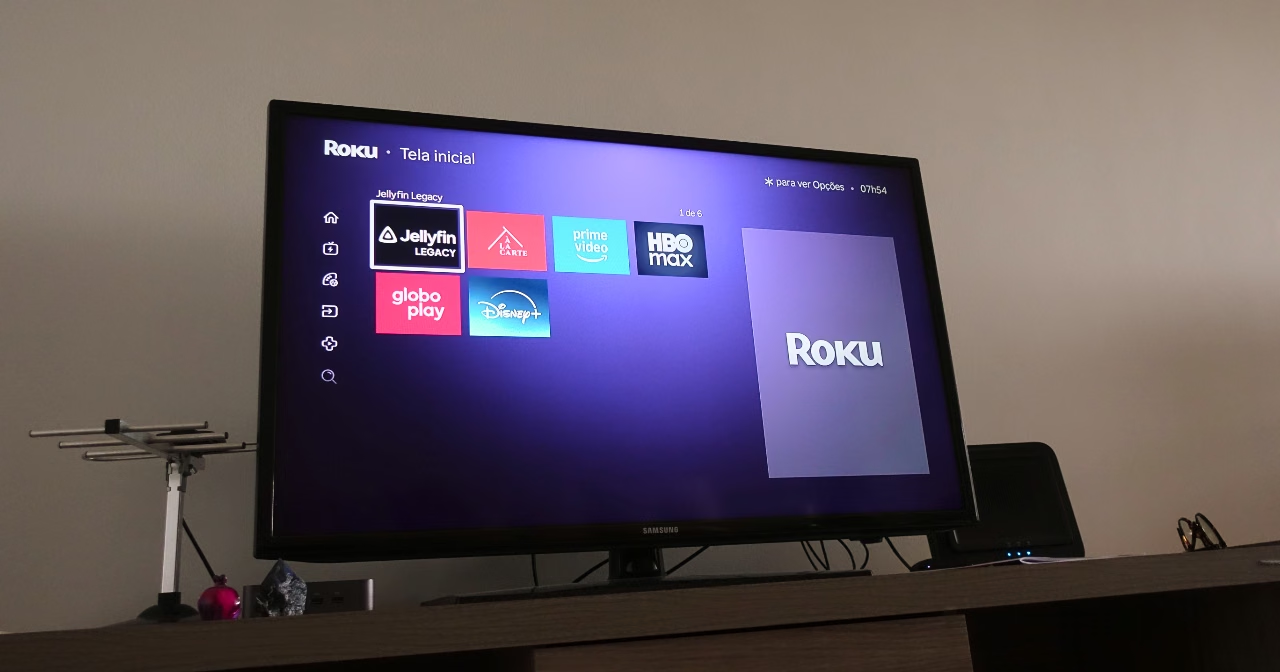
It didn’t work, but I stumbled onto a very happy side effect: the complete removal of Roku’s ads and recommendations.
I use NextDNS (affiliate/referral link), a DNS filtering service. Sounds like tech jargon, but it’s easy to understand: it checks every request made to the internet against blocklists. When a request is on one of those lists, the connection doesn’t go through. Simple as it is, the mechanism goes a long way toward blocking invasive ads and trackers. It’s the front line of online privacy and a great complement to ad-blocking extensions. Oh, and by its nature, NextDNS covers both websites and apps.
The big hurdle at this step is setting up NextDNS on Roku OS, the operating system of Roku’s boxes and TVs. It’s locked down and, unlike most popular systems, doesn’t let you change DNS servers. So you have to set up NextDNS directly on your router.
NextDNS has a generous free plan, with 300,000 queries a month. Since setting it up on the router sends every device in the house through NextDNS, that limit can run out before the end of the month in homes with lots of devices; when that happens, the internet keeps working, but without filtering. The paid plan costs US$ 19.90 a year, a steal.
After creating an account, go to the NextDNS dashboard and, in the “Setup” tab, scroll down to “Setup Guide” and select “Routers,” which has a short tutorial on changing your router’s DNS settings. In short, you’ll need to copy the two IP addresses (IPv4 or IPv6, depending on your router) and paste them into your router’s settings. (Since there’s a huge variety of routers out there, I can’t give specific instructions. The router dashboard address and login credentials are usually on a sticker on the device itself.)
Once that’s done, go back to the NextDNS dashboard and click the “Link IP” button. Done: your network is now being filtered by NextDNS, but we’re not finished yet.
Home internet connections usually have dynamic IPs, meaning the IP, a kind of “internet ZIP code,” changes every so often. When that happens, NextDNS loses track of your new “ZIP code.”
There are two ways around this: use a DDNS service (which means setting up yet another service) or “ping” a NextDNS URL that updates your IP.
I went with the second option because it’s simpler. You can even do it manually: in the “Linked IP” section, click “Show advanced options,” copy the URL that starts with https://link-ip.nextdns.io/… and open it in your browser. It works, but it’s not ideal.
What we want is to make this automatic. If you have a computer that’s on all day or most of the time, you can use it for this by creating a “cron job,” a command that runs at regular intervals. (This works on macOS and Linux distros; on Windows, the way to go would be Task Scheduler, which I haven’t tested.)
Open the terminal and type EDITOR=nano crontab -e, so the file opens in nano, a simpler text editor. If you see some explanatory text, with lines starting with the # symbol, don’t worry: those are comments. Scroll to the end and, on a new line, paste this command:
0 * * * * curl -4 -sf "https://link-ip.nextdns.io/XXXXX" >/dev/null
Replace https://link-ip.nextdns.io/XXXXX with the full URL you copied from the dashboard. Save with Ctrl+O, confirm with Enter and exit with Ctrl+X. That’s it.
This task runs the “curl” command every hour. If your IP changed in the meantime, the next run updates NextDNS with the new one.
Go back to the NextDNS dashboard and open the “Logs” tab. Since the router setup catches every connected device, they’ll all show up as one, under the name “Unidentified Devices.” Turn on the TV with the Roku and check that tab for Roku-related domains. If they’re there, everything’s working.
***
NextDNS has a few privacy lists for specific companies, Roku among them. They’re in the “Privacy” tab, under “Native Tracking Protection.” Turning on Roku’s cuts down on the behavioral and advertising data the company collects. That list, however, doesn’t touch the device’s features at all, such as the ads and recommendations on the home screen.
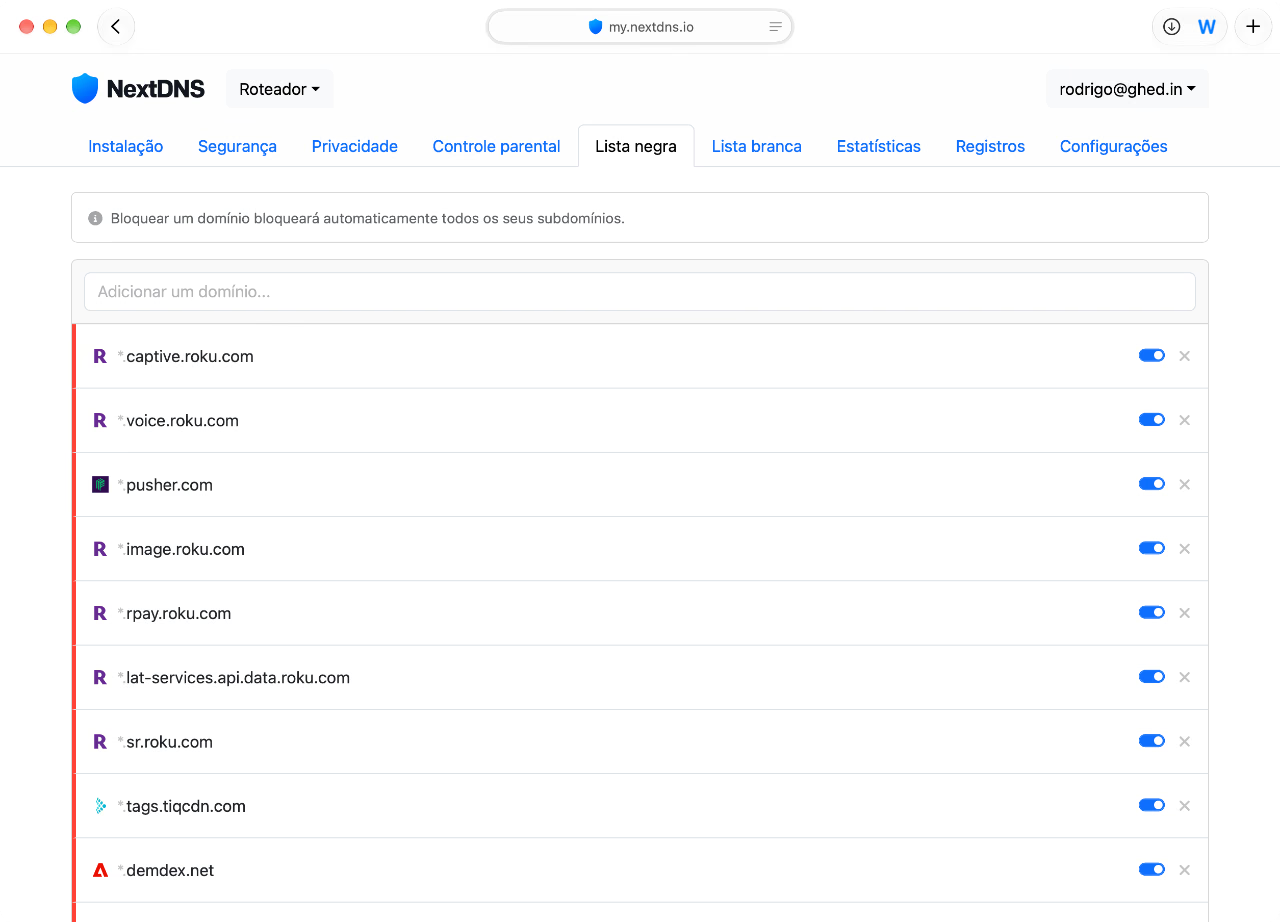
To cut those, we need to head to the “Denylist” tab. That’s where you enter specific domains to be blocked. (It’s a good way to block social media, for example. Just saying.)
My first attempt, blocking the entire roku.com domain, worked a little too well. It blocked everything except the streaming apps, but it came with an annoying catch: a few minutes into a video, on any streaming service, the picture would freeze and, a while later, the Roku Express would restart.
I unblocked the domain and started testing the various Roku subdomains my box calls. It took a few rounds of trial and error to land on a list that, while it doesn’t catch everything, is enough to remove Roku’s ads and recommendations from the home screen. It also affects extra features, like the “Sports” tab and the favorites one, global search and probably other things I’ve never bothered to use. After adding the domains below to NextDNS’s “Denylist,” Roku OS goes back to being a simple list of streaming apps, as intended by the gods of questionable-quality entertainment.
These are the subdomains:
- captive.roku.com
- voice.roku.com
- image.roku.com
- rpay.roku.com
- lat-services.api.data.roku.com
- sr.roku.com
If you want to block software updates, add the sw-update.cs.roku.com subdomain to the list. I didn’t, and good thing: a recent update seems to have fixed something in Roku OS, because the sync glitches have become less frequent.
Despite the time spent on this tiny cause, and the problem having been eased (solved?) by Roku itself, it wasn’t all bad. I ended up with a much better ~experience, with no ads in the operating system and none of those hideous Roku recommendations. My Roku Express is closer to the one I bought in 2022 and to an ideal streaming box: one that only lists the apps I use and lets me watch videos in each of them.