
What’s the most memory-efficient way to check the weather forecast?
In a post on the Windows Latest blog, Abhijith M B warns that Windows 11’s weather app uses up to 1.2 GB of memory (RAM). That’s a lot, indeed. To put that excess in perspective, he compares it to macOS, whose equivalent app uses on average 20% of what Windows does.
Even more than the Windows app, I was surprised to learn that macOS’s Weather app uses ~230 MB and that’s considered light. (I use it a lot and it never occurred to me to check that number.) On Linux distributions, the landscape isn’t much better.
There are hints that explain all that memory consumption: the slick weather animations in the background of the macOS app, the extra locations in the sidebar, and the multiple data points beyond temperature forecasts (precipitation, UV index, air quality), all displayed in a pleasant layout.
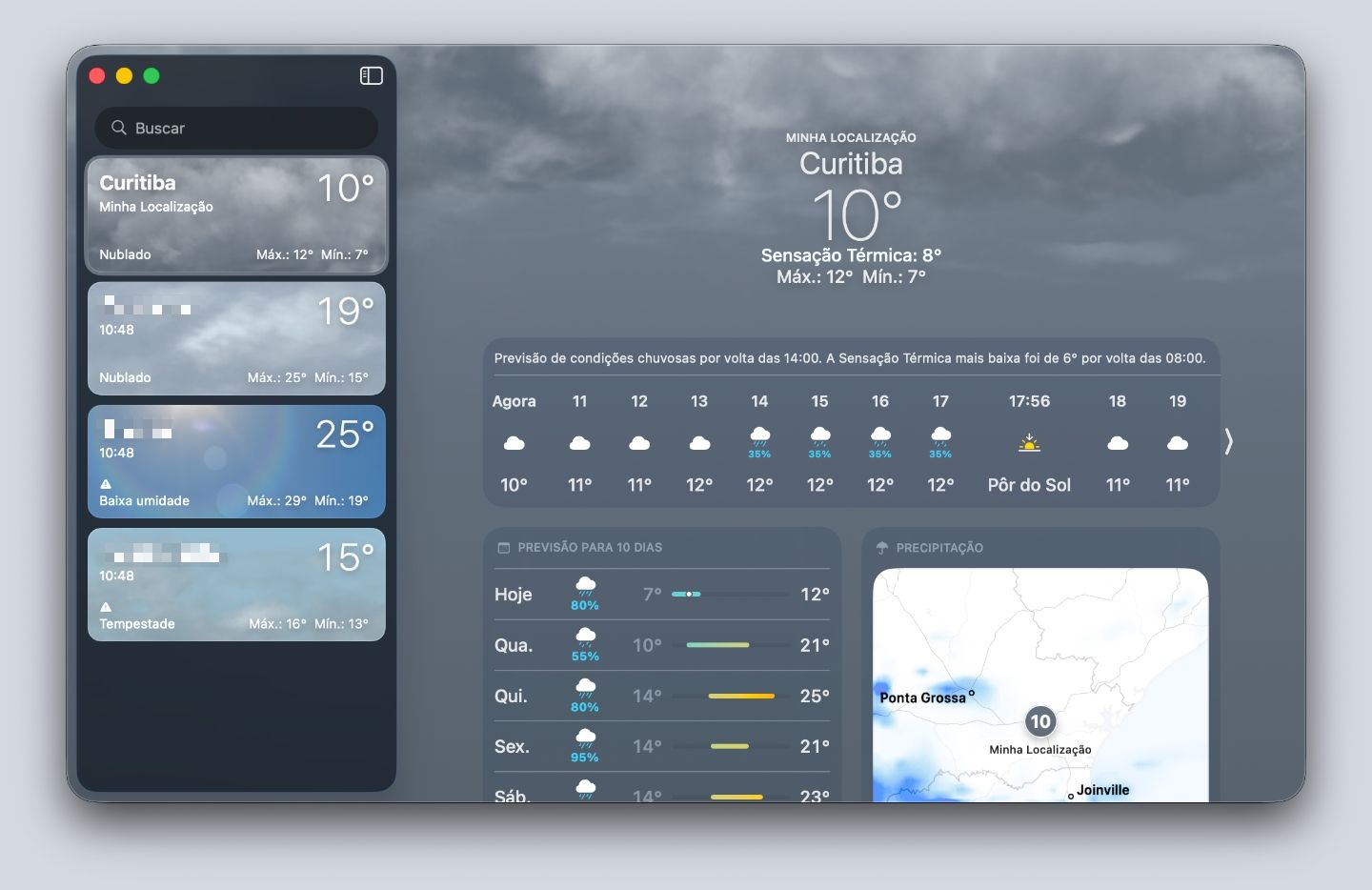
The Windows 11 app is more bloated because it’s actually a packaged website, and packaged websites tend to be heavier by nature. That’s also due to the presence of ads and, I imagine, all the tracking and surveillance machinery that usually comes attached to digital advertising.
I found myself wondering: what’s the most computationally efficient way to check the weather forecast?
My first idea was to turn to web search engines. All of them, like Google, Bing, and DuckDuckGo, show the forecast if you search for “weather.” I tested all three:
- DuckDuckGo: ~190 MB.
- Google: 323 MB.
- Bing: 311 MB.
DDG is the most efficient, but only Bing delivers detailed results on par with built-in OS apps.
One relevant detail is that my browser has ad- and tracker-blocking extensions installed, which lowers the memory footprint. Even so, usage is high, and it could be even higher, since I only measured the tab’s process, not the browser itself (Safari, in this case), which does get counted for the Windows 11 app.
That reminded me of a service that returns the weather forecast right in the terminal, wttr.in. The only requirement is having curl installed on your machine. Then you just type this:
curl wttr.in/Curitiba
If you drop the city name (Curitiba is the city where I live), the request tries to guess your location from your IP address. The macOS Terminal app uses ~60 MB of RAM when opened, and stays around that level after a small 10 MB spike during the wttr.in query. Of the data wttr.in returns, the only thing I missed was relative humidity:
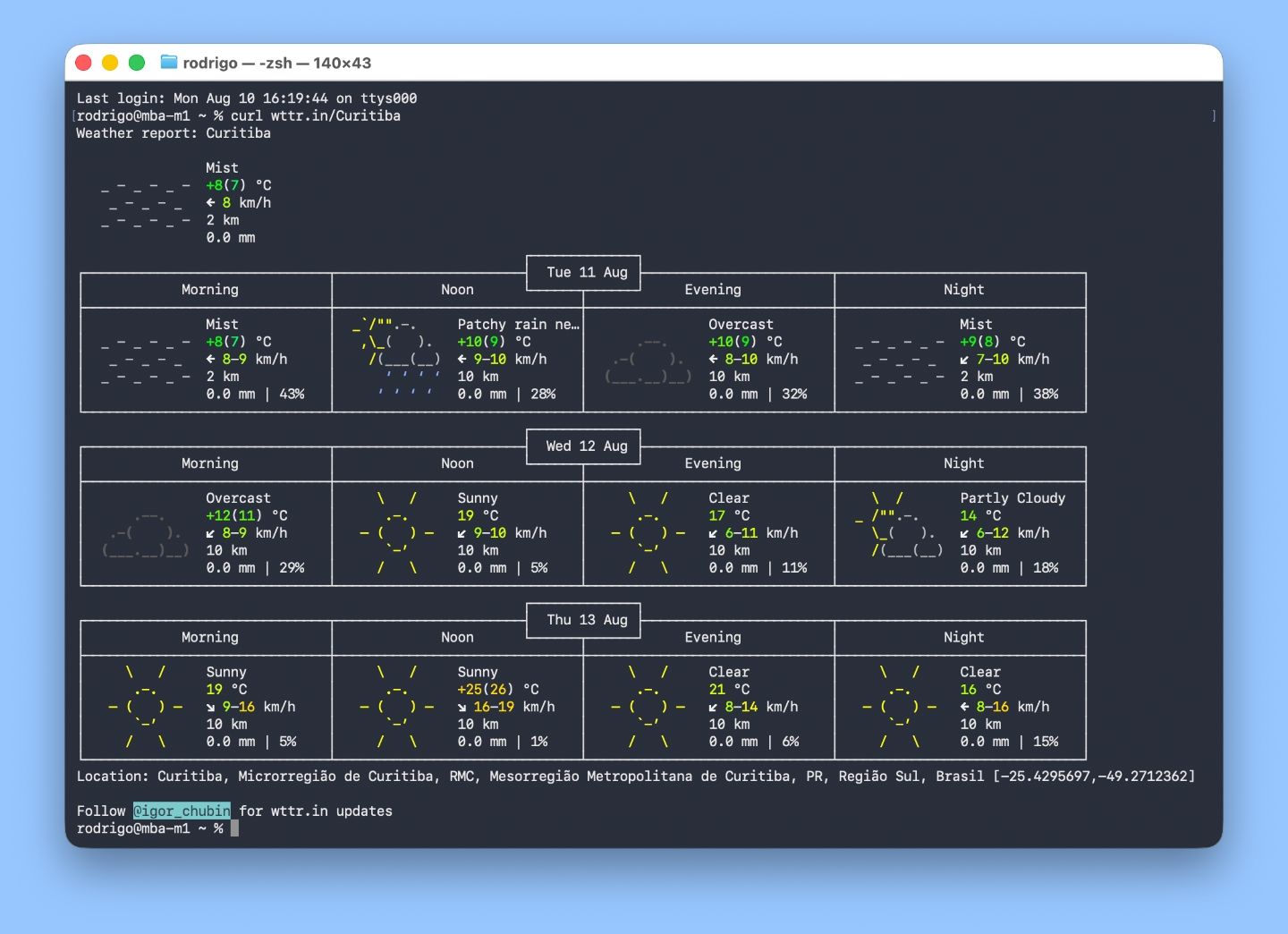
(You can get humidity back with a parameter in the query URL, like this: curl "wttr.in/?format=%h". It’d be nice if it were part of the default output, though.)
Does any of this matter? Ideally, no. Memory exists to be used, after all. The Windows 11 case is an outlier and, hopefully, something Microsoft will eventually fix, if the promises made back in March — that Windows will get lighter and carry fewer ads — hold up.
That said, this whole investigation was carried out purely for entertainment purposes.